To install Save Emails as Google Drive, click here.
To access Save Emails to Google Drive dashboard, click here.
Introduction
With cloudHQ Save emails to Google Drive, you can automatically save all emails in a label and its sub-labels to a Google Drive folder or a Google Shared Drive folder. This is useful if you need to save a lot of emails or keep saving new emails to your Google Drive.
This support note explains how to use the cloudHQ browser extension to save a label to a Google Drive folder.
Choose your setup method
Before you start, decide whether to use the cloudHQ browser extension or the cloudHQ website wizard. If you are setting up automatic email saving for multiple users (for example, as a Google Workspace admin), we recommend the cloudHQ website wizard. For instructions, see: How to save all emails in a label (and sublabels) to Google Drive using cloudHQ wizard. If you only need to save your own emails, the browser extension is the easiest and most convenient option.
This support note explains how to use the cloudHQ browser extension to save a label to a Google Drive folder.
Example label structure
For example, if you have a label called Support with sub-labels Open tickets and Closed tickets, you can save all emails from Support, Support/Open tickets, and Support/Closed tickets to a Google Drive folder named Support with one click.
How it works
In short, with Save emails to Google Drive, you can run a background job that will:
- Watch and convert all emails in any Gmail label you choose.
- Export them as PDFs (or other formats) to any Google Drive folder you choose.
- Run automatically and nonstop, so you don’t need to do anything.
- Keep all Gmail labels and sub-labels as folders and subfolders in Google Drive. This means:
- Each Gmail label becomes a folder in Google Drive.
- Sub-labels appear as subfolders inside the main folder.
Setup steps
Here is how to do it:
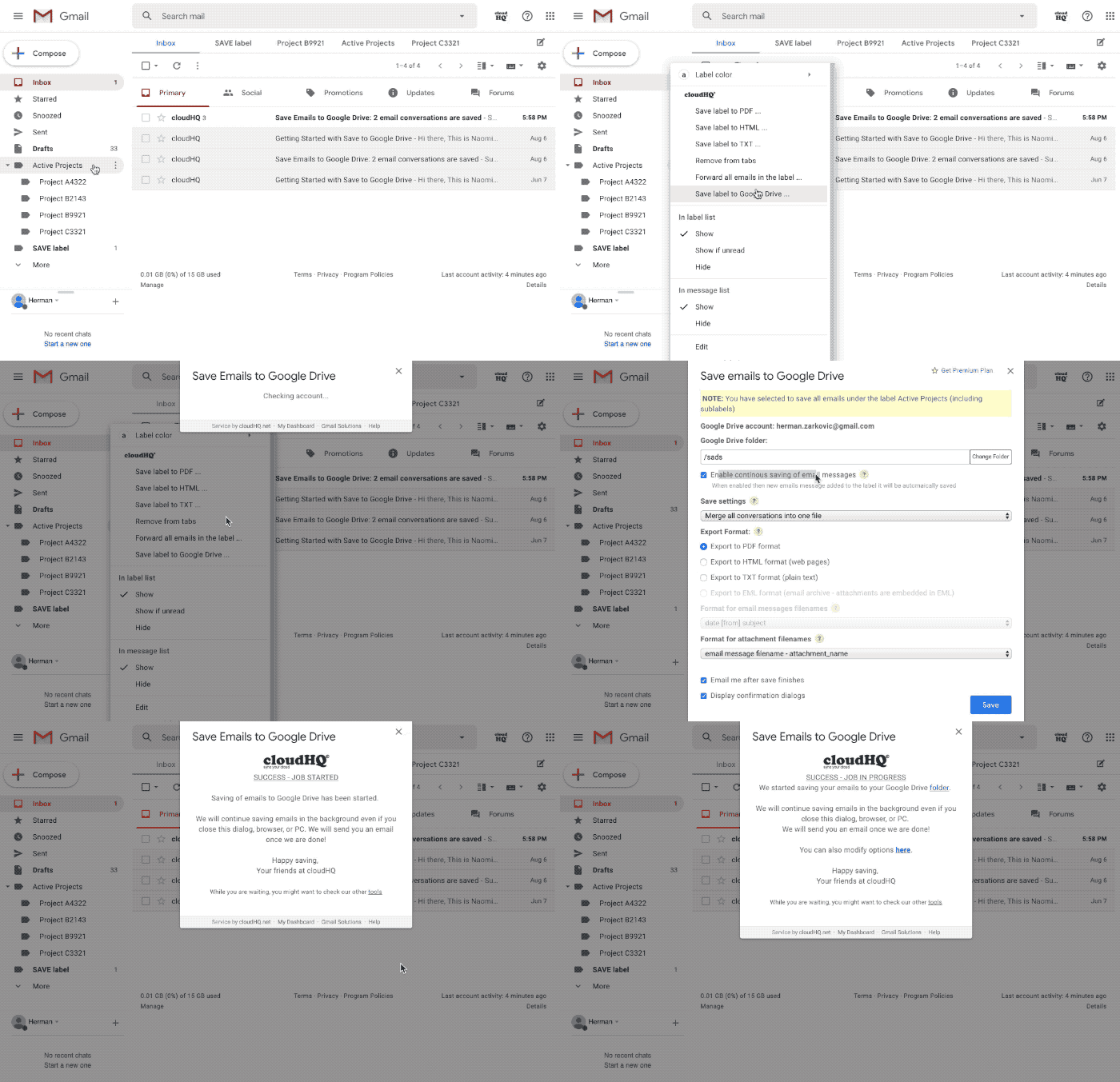
- Open Gmail. On the left side, find the label you want to save to Google Drive. If you cannot see it, scroll down and click More to expand the list. Move your mouse over the label name. Click ‘More‘. When the menu appears, select ‘Save label to Google Drive…‘:

- Select the Google Drive folder and choose your save options:

- The following options are available:
- Enable continuous saving of email messages
- Save settings
- Export format
- File name format for emails
- File name format for attachments
When you are done, click Save.
- The saving will run in the background. It will keep running even if you close the dialog, your browser, or your PC. We will email you when the background job is done.

Save labels to Google Drive; convert all label emails to Google Drive; convert sublabels to PDF; save