To install the extension, choose from the links below:
- Download Save Outlook Emails as PDF for Chrome
- Download Save Outlook Emails as PDF for Microsoft Edge
The dashboard is here: Save Outlook Emails as PDF – Dashboard
- Introduction
- Use Cases
- Save an Outlook folder or entire account as PDF
- Next Steps and Additional Information
Introduction
This guide shows you how to use the cloudHQ web wizard to save a full Outlook folder, including its subfolders, or your entire Outlook account, to PDF.
You run the wizard from the cloudHQ dashboard in your web browser. There is no need to open each email one by one. You pick what you want to save, choose your options, and click start. cloudHQ then converts everything in the background and gives you one organized result, with the original formatting, headers, and attachments kept intact. The wizard works with both Microsoft 365 work or school accounts and personal Outlook.com accounts.
Use Cases
Use the web wizard when you want to save many emails at once, for example to archive a folder for a finished project, to keep a permanent record of a completed real estate transaction, or to back up your entire Outlook account as PDF.
People often use the wizard to:
- Archive a folder for a finished project and keep it safe outside the inbox.
- Save a complete record of a finished real estate transaction or client case.
- Back up all of their Outlook emails as PDF for safekeeping.
Save an Outlook folder or entire account as PDF
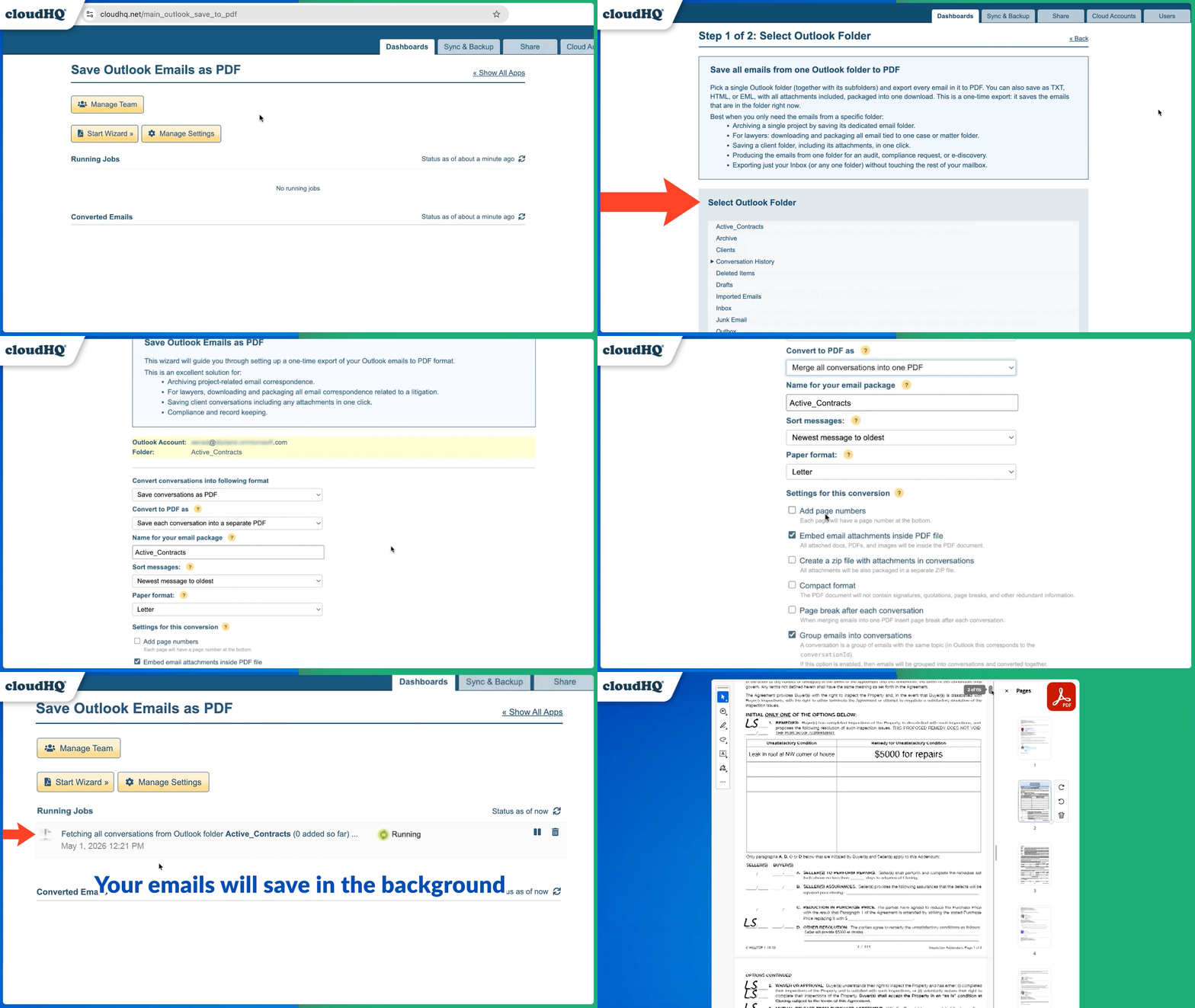
Follow these steps to save a full Outlook folder, or your entire account, as PDF using the web wizard:
- Log in to cloudHQ with your Outlook account. This is your Microsoft 365 work or school account, or your personal Outlook.com account.
- Go to the Save Outlook Emails as PDF dashboard. Click the Dashboard tab, then click the Save Outlook Emails as PDF icon.
- Click Start Wizard.
- Select what you want to save. Choose a single folder, and its subfolders are included, or choose to save your entire Outlook account.
- Select the options for this save. You can choose the format (PDF, HTML, TXT, or EML), choose to include attachments, add a page break after each conversation, protect the file with a password, and pick where to save the result.
- Click Start Save. cloudHQ converts your emails in the background, so you can close the window or the browser, and it lets you know when your file is ready. Large folders or full accounts can take a while, which is normal.
Here is the entire process in one short demo:
Next Steps and Additional Information
Here are a few things you can do next, and some extra help:
- Watch the full walkthrough. See the complete process in this video: Save Outlook Emails as PDF wizard walkthrough.
- Share your saved emails as PDF. Once your file is ready, you can download it, attach it to a new email, upload it to your cloud storage, or use cloudHQ to share it with a secure link. [ Link placeholder: how to share your saved emails as a PDF ]
- Understand your save options. The wizard lets you choose the output format (PDF, HTML, TXT, or EML), whether to include attachments, whether to add a page break after each conversation, whether to protect the file with a password, and where to save the result. [ Link placeholder: a detailed guide to the save options ]