Here are short instructions for how to back up all your files in Box to Google Drive:
- Start the synchronization wizard to sync two cloud accounts:
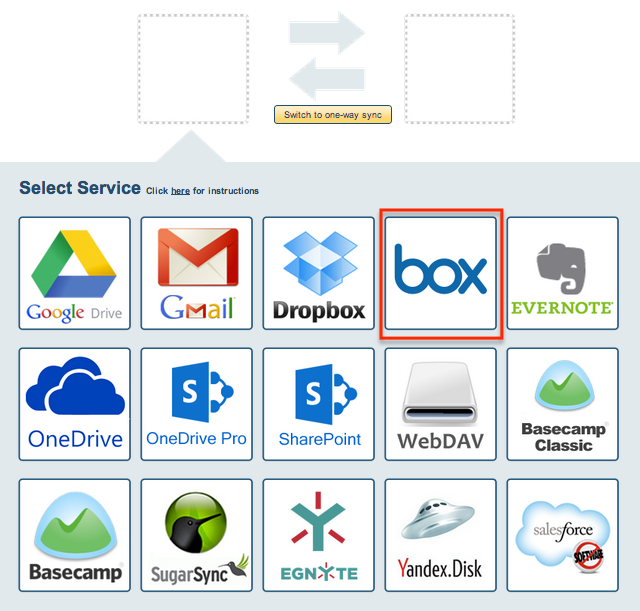
- Click the Box icon:
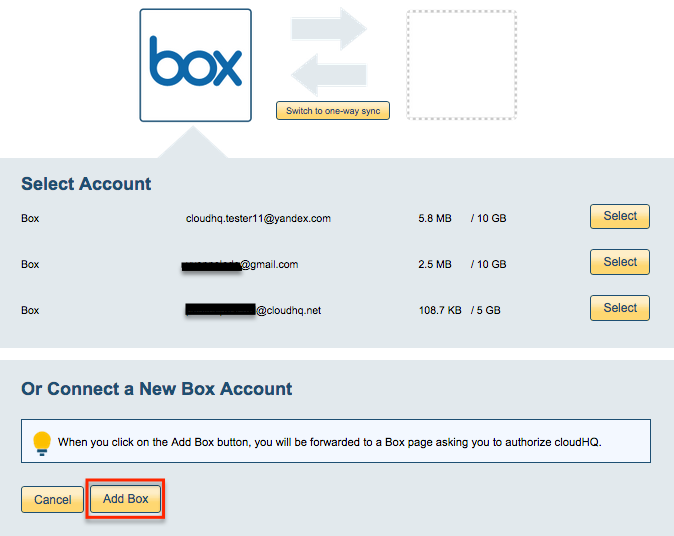
- Select an already-configured Box account or click “Add Box” to add a new Box account:
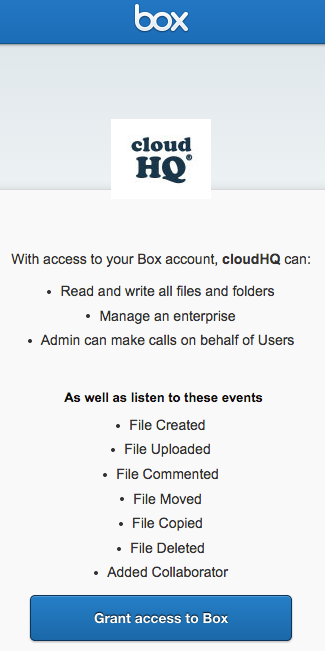
- If you click “Add Box,” you will be forwarded to authorize cloudHQ to access your account:
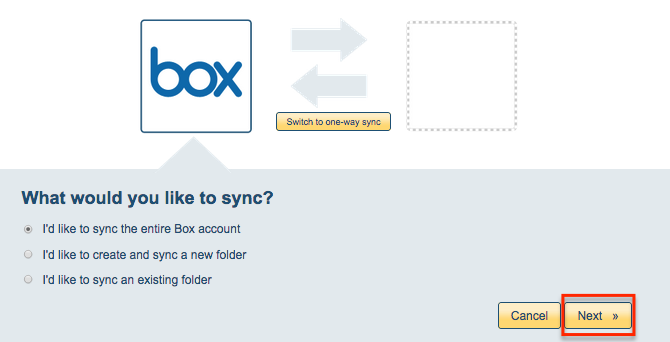
- Select the top-level sync type for Box, then click “Next”:
- Click the Google Drive icon:
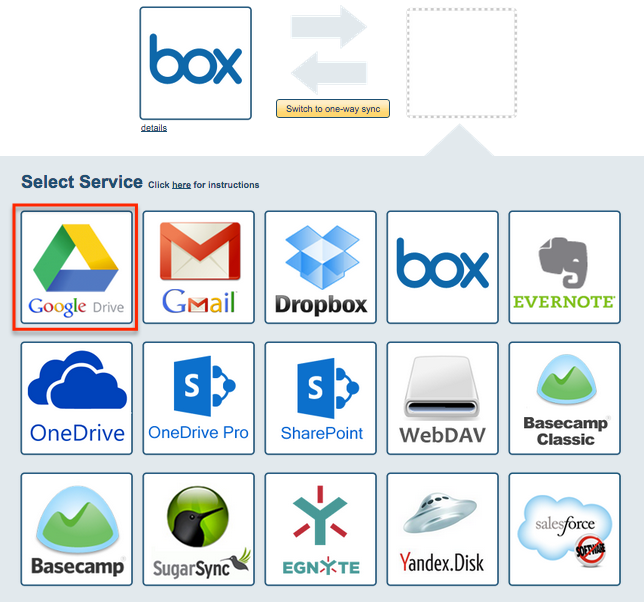
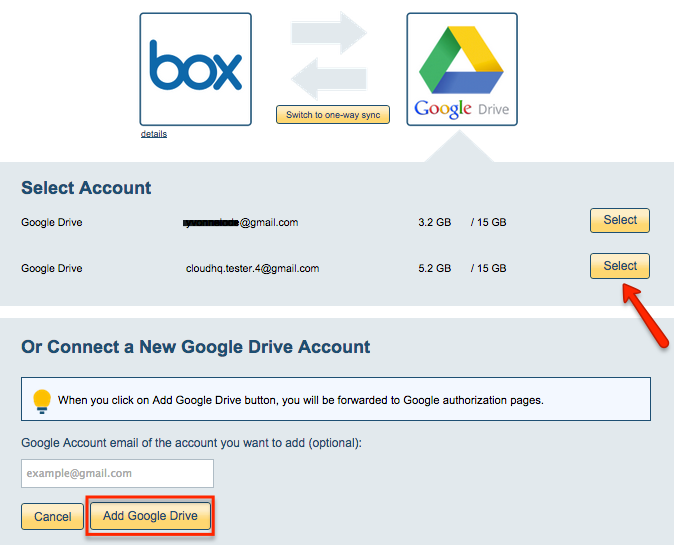
- Select an already-configured Google Drive account or add a new Google Drive account:
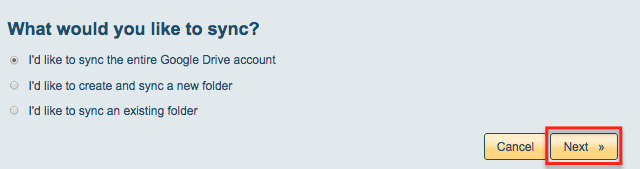
- Select the top-level sync for Google Drive or choose a new folder for this backup:
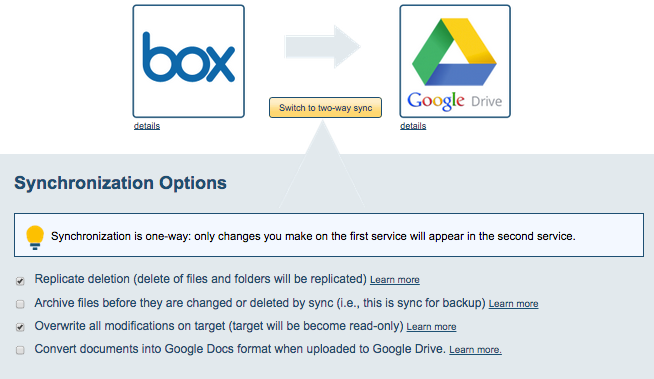
- Since this is a backup, click the “Switch to one-way sync” button:
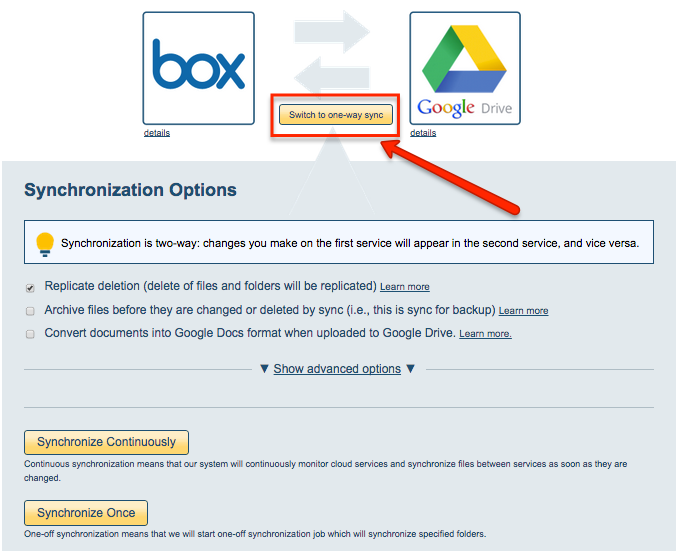
- Choose your options. Synchronization will start automatically.
- The synchronization status will display after initial synchronization.
- Here is How to Monitor Status of Sync.
- You will receive an email confirming the success of the initial synchronization.