- What is Cross-Cloud Folder Sharing
- Use Cases
- How Cross-Cloud Folder Sharing Works
- How to Share a Folder
- Next Steps and Additional Information
What is Cross-Cloud Folder Sharing
Cross-Cloud Folder Sharing by cloudHQ lets you share a folder with people who use a different cloud storage service than you.
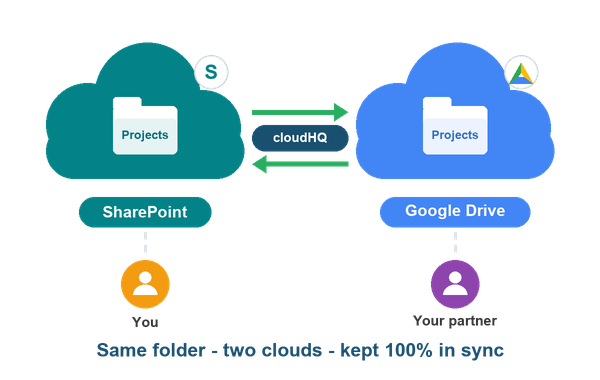
For example, you can keep your files in SharePoint and share a folder with a partner who only uses Google Drive. Your partner will see the folder in their Google Drive, and you will keep working in SharePoint. Nobody needs to switch to a new cloud service, create new accounts, or learn a new tool.
Cross-Cloud Folder Sharing works with Google Drive, Google Shared Drives, Dropbox, Box, Microsoft SharePoint, Microsoft OneDrive, Egnyte, and Amazon S3.
In short, here is how it works: cloudHQ creates a sync pair between the two cloud accounts and ensures that the data inside the two folders is 100% in sync. When you add or change a file in your folder, the same change appears in the folder of the person you shared with. When they add or change a file, the change appears in your folder.
Use Cases
Cross-Cloud Folder Sharing is useful whenever you work with people outside your company who use a different cloud service. Here are some use cases:
- Sharing with partners. Your company keeps everything in SharePoint. You start a project with a marketing agency that works only in Google Drive. Instead of emailing files back and forth, you share one project folder. The agency drops campaign drafts, images, and video files into their Google Drive folder, and your team sees them in SharePoint right away. When your team edits the campaign brief, the agency sees the new version in their Google Drive. Nobody has to ask “can you send me the latest version?” ever again.
- Sharing with clients. Your clients need to send you files, and they often send them by email, one attachment at a time. For example: a law office needs signed contracts and evidence documents from a client. An accountant needs receipts, bank statements, and invoices for tax season. A real estate agent needs inspection reports and signed forms from a buyer. Share a folder with your client, and the client just puts the files into the shared folder in their own cloud service. The files appear in your cloud storage automatically, all in one place, and nothing gets lost in email.
- Backup of contractor work. You hire a freelancer or a contractor for a project, for example a video editor who keeps all the footage and project files in their own Dropbox. As they work, every file is also synced to your company storage. When the project ends, or if the contractor stops answering, or their account is closed, you still have every file you paid for, in your own account. You are never in the position of chasing a former contractor for your own project files.
- Teams on different platforms. Your company works on Microsoft 365, and then you acquire a smaller company that runs on Google Workspace. Moving everyone to one platform can take a year or more. In the meantime, both teams need to work on shared projects. Cross-Cloud Folder Sharing gives them one shared folder that works on both platforms, so work continues while IT plans the migration.
The main benefits are:
- Everyone works in the cloud service they already know. Nobody needs to switch.
- Files are always up to date on both sides. There is no need to email files back and forth.
- Every side has a full copy of the data in their own cloud account. This protects you if the other side loses access to their account.
How Cross-Cloud Folder Sharing Works
cloudHQ is a sync service. When you share a folder, cloudHQ creates a sync pair between your folder and the folder of the person you invited. The sync is two-way and continuous: cloudHQ watches both folders, and when a file is added, changed, or updated on one side, cloudHQ copies the change to the other side. This is how cloudHQ ensures that the two folders are 100% in sync.
cloudHQ also converts file formats when needed. For example, a Google Doc in Google Drive is synced to SharePoint as a Word document.
How to Share a Folder
Here are the steps how to share a folder:
- You create a share by selecting a folder. Go to your cloudHQ sharing dashboard, open the Cross-Cloud Folder Sharing tab, and click Share a Folder. Then select the folder you want to share from your cloud account. If your cloud account is not listed yet, click Authorize a Cloud Account to add it. cloudHQ will verify that it has full access to the folder.
- You invite people. Enter the email addresses of the people you want to share the folder with (you can invite up to 5 users per folder), add an optional message, and click Share Folder. cloudHQ will send an email invitation to each person. The subject of the email will be:
- The recipient accepts the invite. The recipient opens the invitation email and clicks the link to accept the share.
- The recipient selects a folder in their own cloud service. The recipient chooses the cloud service and the folder where the shared folder will be synced. This can be a different cloud service than yours. We recommend creating a new empty folder for the shared content. If the recipient has no cloud account authorized with cloudHQ yet, they will be asked to authorize one first.
- cloudHQ creates the sync pair. After the recipient confirms, cloudHQ creates the sync pair and starts the first sync. From this moment, the two folders are kept 100% in sync: all files shared by you appear in the recipient’s folder, and files added by the recipient appear in your folder.
Note: All invited users get full access to the shared folder (view, download, add, and edit files). Only folders from cloud storage services can be shared this way. Emails (Gmail or Outlook) cannot be shared with Cross-Cloud Folder Sharing. To share Gmail labels and emails, please use Label Sharing for Gmail.
Next Steps and Additional Information
Here is more information about Cross-Cloud Folder Sharing:
- Cross-Cloud Folder Sharing: FAQ. Answers to common questions about supported cloud services, sync speed, permissions, and limits. Cross-Cloud Folder Sharing FAQ
- Managing Cross-Cloud Folder Shares. How to see who is a member of your share, add more people, remove a user, leave a share, or unshare a folder. Managing Cross-Cloud Folder Shares
- See more guides. Visit the cloudHQ support center for more help.