Google Apps preparation
- Ensure that you are a Google Apps super admin. The instructions are here:
https://support.cloudhq.net/cloudhq-access-permission-for-google-apps-admin/. - Ensure that the Google Apps Administrative API is enabled for your domain. The instructions are here: https://support.cloudhq.net/how-to-check-if-google-apps-administrative-api-is-enabled-for-your-domain/.
Authorize cloudHQ to access your Google Apps domain
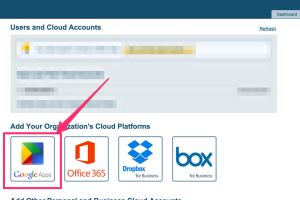
- Go to https://www.cloudHQ.net/services and click the “Google Apps” icon:
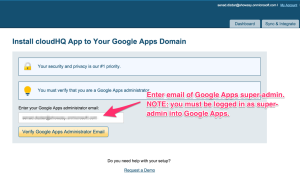
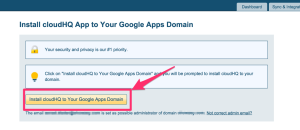
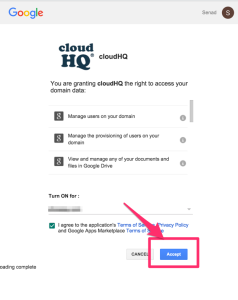
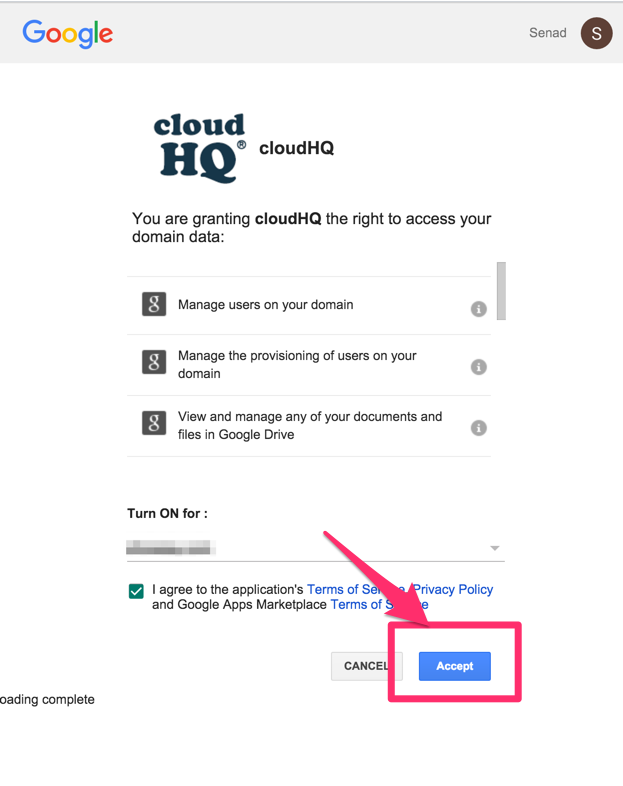
- Enter your Google Apps super-admin email and follow the wizard steps:
Create sync pairs
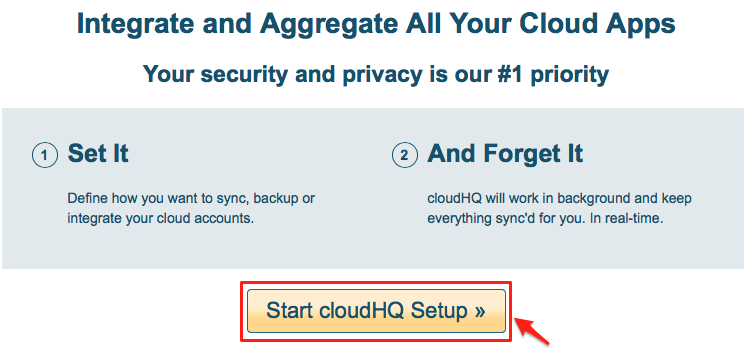
- Click “Start cloudHQ Setup”:
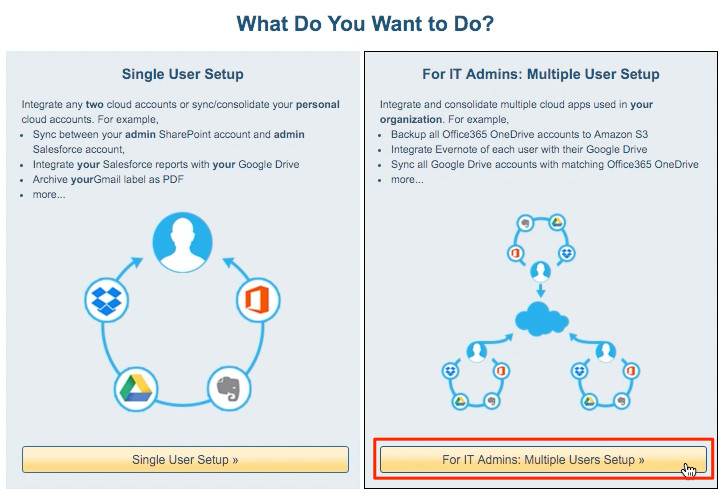
- Select “For IT Admins: Multiple Users Setup” as the type of sync:
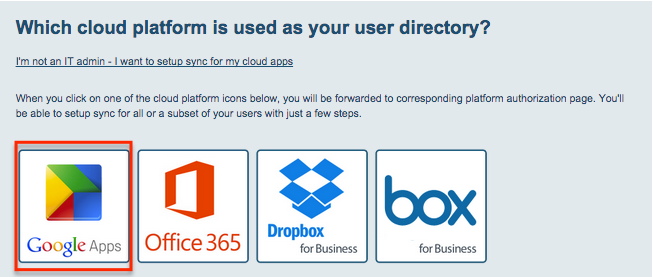
- Select “Google Apps” as your organization’s cloud platform:
- Click the Gmail icon or drag it to the left empty box:
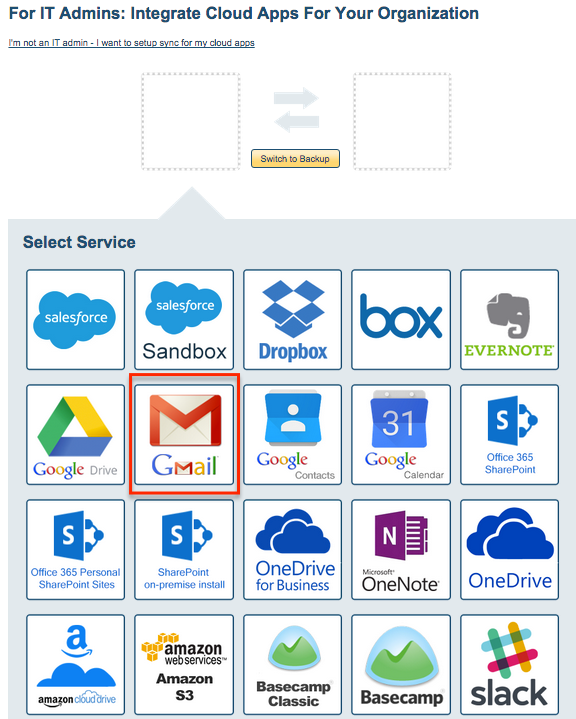
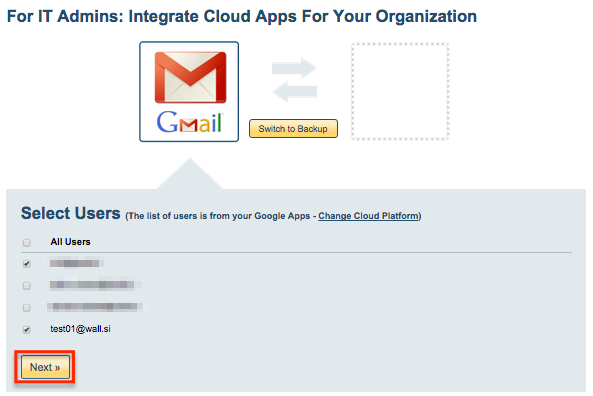
- Choose the users whose apps you want to sync. cloudHQ will get a list of users from your Google Apps account and ask you which users you want to sync:
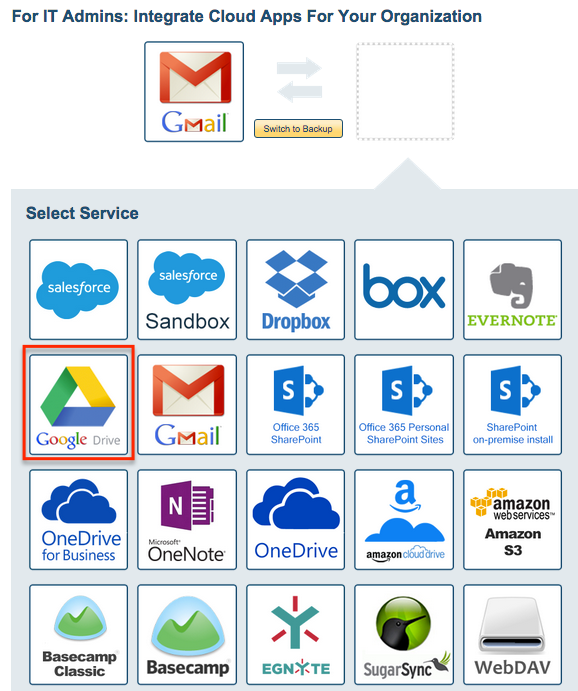
- Click the Google Drive or drag it to the right empty box:
- Click “Finish”:
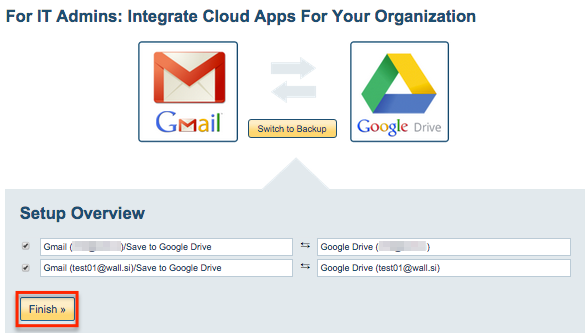
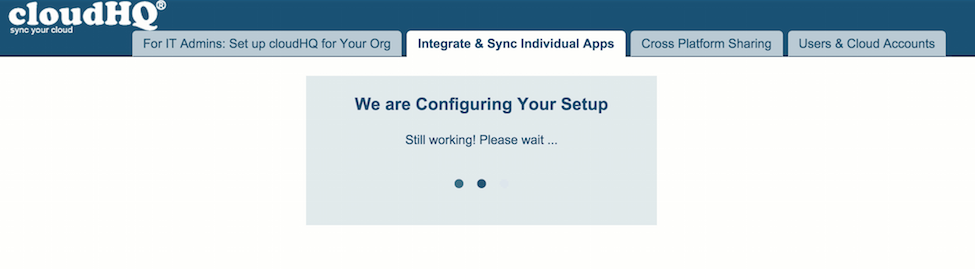
- Configuration will be done by cloudHQ:
- Synchronization pairs will be automatically done by cloudHQ:
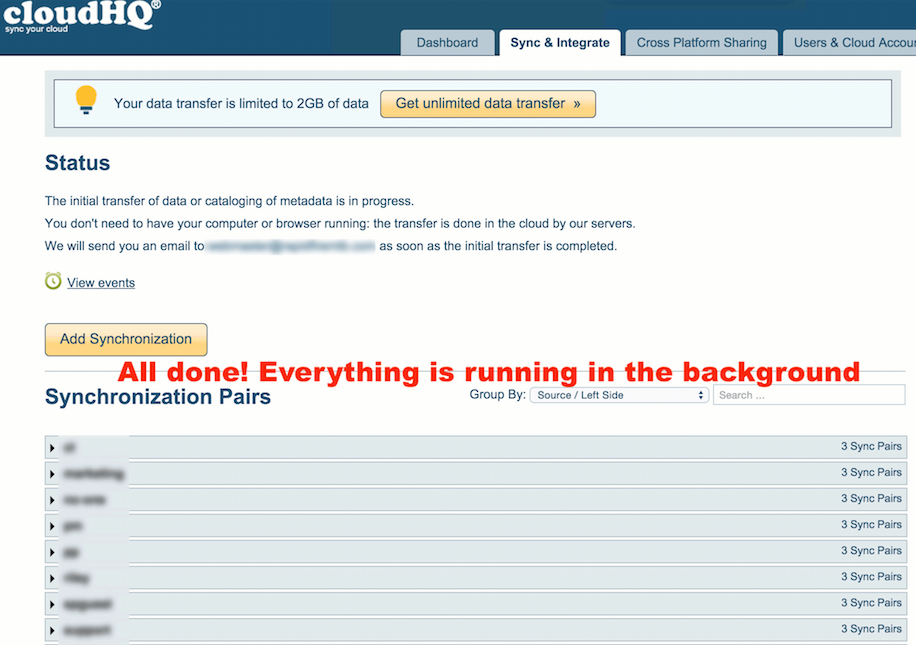
- Synchronization will start. Here is How to Monitor Status of Sync.
—