Congratulations!
You’ve successfully installed Webpage to PDF by cloudHQ from the Chrome Web Store – an easy and secure way to save web pages and articles to PDF and Word Documents.
Here’s how to get started in just 3 clicks….
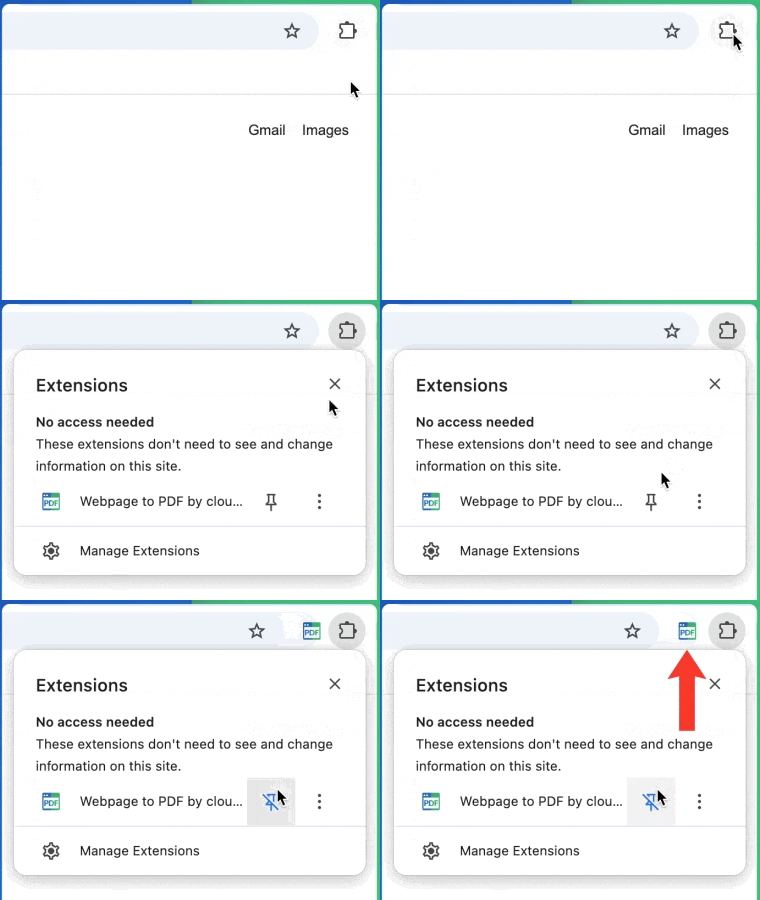
Step 1. Pin the extension for easier access
For easier access, pin the extension by clicking on the pin icon in your extension menu located in the upper right corner of your browser:
Step 2. Save the page to PDF
Open the web page you want to convert to PDF. Click the Webpage to PDF icon in the upper-right corner of Chrome, next to the address bar where browser extensions appear. This opens the Webpage to PDF extension. In the extension window, click Convert this page to PDF to start
the conversion.
Step 3. PDF generated successfully
Once the conversion is complete, a green checkmark appears along with the message
“PDF generated successfully!”.
- Click Open PDF to view the generated PDF in a new tab or window.
- Click Download PDF to save the PDF file to your device.
- Click Convert this page again to generate another PDF from the same page.
Note: Keep the conversion window open until the success message appears. Conversion time may vary depending on the size and complexity of the page. If the process does not complete, refresh the page and try again.