Convert PDF to Text website.
To add the Convert PDF to Text add-on, use the link below:
You can also use Convert PDF to Text by cloudHQ directly from the website here:
Convert PDF to Text Dashboard.
- Introduction
- Key Features
- Use Cases
- Install Google Drive Add-on
- Using Google Drive Add-on: Convert your PDF files into Text
- Next Steps
Introduction
Convert PDF to Text by cloudHQ turns your PDF files into plain text (.txt) documents. It works with normal PDFs, with scanned PDFs and photos (it reads the text using OCR), and with images and screenshots.
You can convert one file, many files at once, or every file in a whole folder. You run everything from Google Drive, so there is nothing to download and nothing to install on your computer.
Key Features
- Works with any PDF. Convert normal PDFs that already contain text, and keep the words exactly as written so you get clean, ready to use text.
- Works with scanned files. Scanned PDFs, photos of documents, and screenshots have no real text inside them, only a picture. Convert PDF to Text reads the words from the image using OCR (optical character recognition) and gives you real text you can search, copy, and edit.
- Redaction of sensitive information. You can automatically hide private details from the text before it is saved. You choose what to remove, for example person names, email addresses, phone numbers, addresses, Social Security numbers, bank account numbers, and credit card numbers. Each removed item is replaced with XXXXXX.
- Convert all files in a folder. Select a whole Google Drive folder and every supported file inside it is converted in one job. You do not have to open and convert files one by one.
- Collect everything into combined text files. You can keep one combined text file that holds the text of every file you convert. You can keep one combined file per folder, or one master combined file for your entire Google Drive. This is optional and you turn it on with a checkbox.
Use Cases
People convert PDF files into text for many reasons. Plain text is small, easy to search, and easy for other tools to read.
Feed documents to AI and cut your AI costs. AI tools like ChatGPT read plain text much better than they read PDF files. A PDF also uses far more tokens than the same content in text, so it costs more to send a PDF to an AI. Converting to text first gives the AI cleaner input and lowers your token cost.
Search and audit across many documents. Once your files are plain text you can search all of them at once, copy parts out, and review large sets of documents quickly. This is helpful for audits, record keeping, and research.
Pull data out of receipts, scans, and screenshots. A photo of a receipt or a scanned form is just a picture. After OCR you get real text that you can read, copy, and process.
Why we added redaction. Many documents contain private information such as names, emails, phone numbers, or account numbers. If you plan to hand the text to an AI service or share it with other people, you often do not want that private information to go with it. Redaction lets you remove those details automatically, so the text you get out is safe to share or safe to send to an AI.
Why we added combined text files. When you convert many files, it helps to also have everything in one place. A combined text file (one per folder, or one for your whole Drive) lets you search all of your documents at the same time, or hand a single file to an AI instead of many. The combined file updates itself as you convert more files, and if you convert the same file again it updates that file’s section instead of adding a duplicate.
Install Google Drive Add-on
To use Convert PDF to Text inside Google Drive, you first install the add-on. Here is how:
- Go to the Google Workspace Marketplace page:
https://workspace.google.com/marketplace/app/convert_pdf_to_text_by_cloudhq/382641463619 - Click the Install button and follow the prompts.
- Sign in with your Google account and allow all requested permissions. The add-on needs these permissions so it can read the files you pick and save the converted text files back to your Drive.
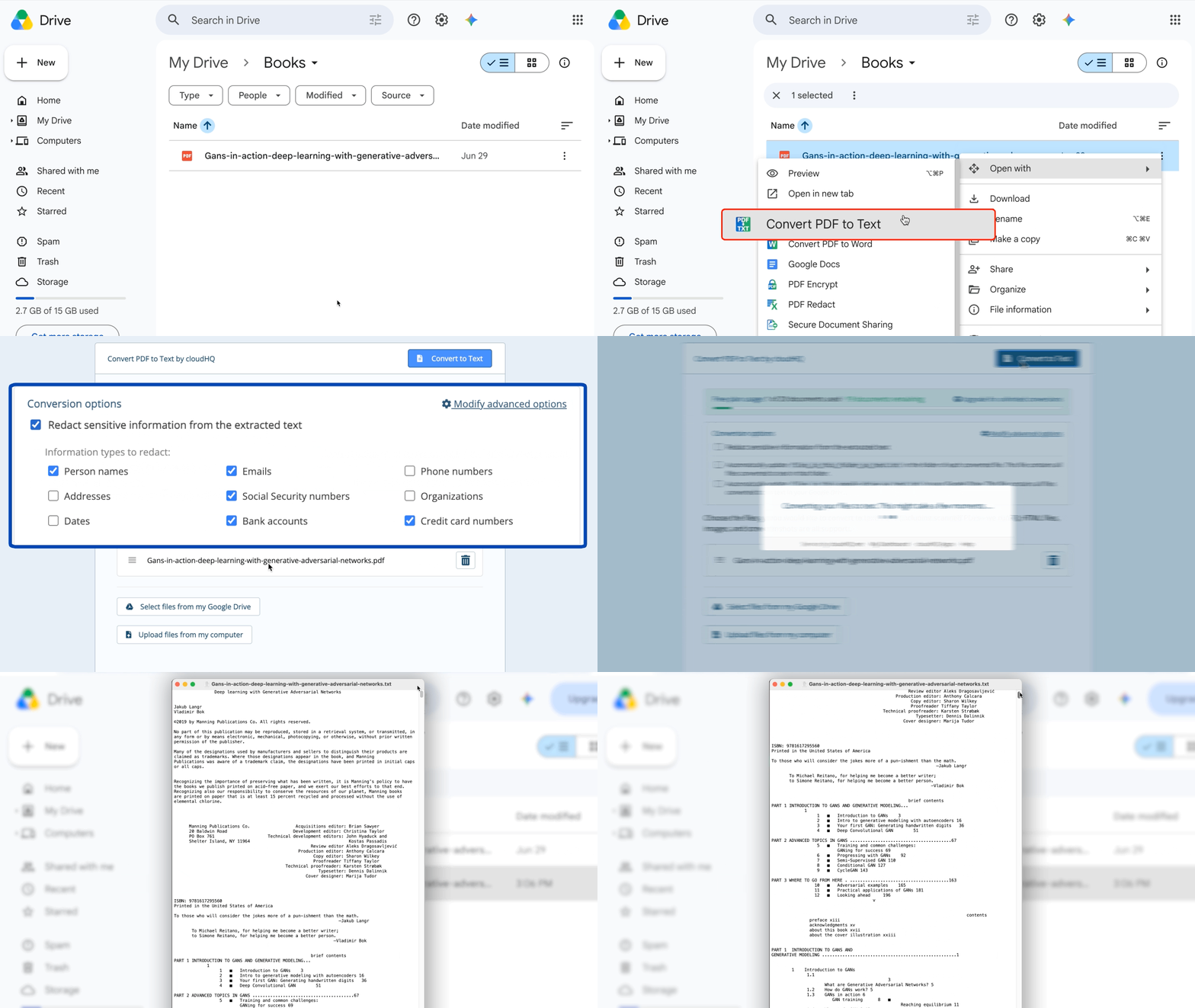
- After installing, open Google Drive and refresh the page. When you select a file and open the three dots menu (or right click the file), you will see the Convert PDF to Text option under Open with.
Using Google Drive Add-on: Convert your PDF files into Text
After you install the add-on, here is how to convert your files:
- Open Google Drive and select the PDF files you want to convert. You can select one file or several files at once.
- Right click the selection (or use the three dots menu), open the Open with menu, and choose Convert PDF to Text.
- You are taken to the cloudHQ website. If this is your first time, you are asked to create an account. Just click Sign In with your Google account.
- The Convert PDF to Text page opens and shows the files you picked. Here you can also add more files from Google Drive or upload files from your computer, and you can review your conversion options. If you want, turn on redaction to hide sensitive information, and turn on the combined text file options. When you are ready, click Convert to Text.
- Your files are converted for you. This takes a few moments. When it is finished you can download the text files, and each converted .txt file is also saved in Google Drive, right next to the original file.
Next Steps
Here are a few things you can do next, and where to get more help:
- Frequently Asked Questions. See Convert PDF to Text: FAQ (Frequently Asked Questions).
- Convert an entire folder. You do not have to pick files one by one. When you select files from your Google Drive, you can pick a whole folder, and every supported file inside it is converted in the same job. How to convert all files in a folder to text
- Watch the conversion job in your cloudHQ dashboard. Every conversion runs as a job. You can open your cloudHQ dashboard to see the job progress, check which files are done, and download the results later. Go to your cloudHQ Dashboard.
- Change the combined text file options. On the Convert PDF to Text page you can turn on two options: keep one combined text file in each folder, and keep one combined text file for your entire Google Drive. You can set your default choices on the settings page (or use the Modify advanced options link on the conversion page).
- Change the redaction options. On the Convert PDF to Text page, turn on Redact sensitive information and pick the information types to remove, for example names, emails, phone numbers, addresses, Social Security numbers, bank accounts, and credit card numbers. You can also add your own custom types and exact words to always redact. Set your defaults on the settings page.
- See more guides. Visit the cloudHQ support center for Convert PDF to Text for more help.