Title: Getting started with Attach Files as PDF: How to attach files in Gmail and convert them to PDF automatically
Attach Files as PDF website.
To install the extension, use the link below:
- Attach Files as PDF by cloudHQ on the Chrome Web Store
- Attach Files as PDF by cloudHQ on Microsoft Edge Store
Video overview: How Attach Files as PDF works.
Table of Contents
- Introduction
- Key Features
- Use Cases
- Installing the extension and attaching your first file
- Additional Resources and Next Steps
Introduction
Attach Files as PDF by cloudHQ adds an Attach Files as PDF button to the Gmail compose window. Choose a file from your computer and the extension converts it to PDF. The new PDF is then added to your Gmail draft as a normal attachment.
This saves you from opening another program, exporting the file to PDF, finding the exported copy, and attaching it by hand. The PDF is created from the file you choose at that moment, so it contains your latest changes.
Key Features
Support for any file type
The extension works with common documents and images, including Word, Excel, PowerPoint, OpenDocument, text, RTF, HTML, JPG, PNG, and other file types. Existing PDF files are attached without being converted again.
If a file type cannot be displayed as normal PDF pages, the extension creates a PDF that contains the original file as an attachment and gives the recipient instructions for opening it. You can choose up to 5 files at one time. Each file can be up to 15 MB.
Automatically convert files to PDF
Choose the source files and cloudHQ handles the conversion. When the conversion is complete, the new PDF files are added directly to your open Gmail draft. Large converted PDFs are compressed automatically when needed.
The PDF is created when you attach it. You do not need to search for an older PDF that you exported before your latest edits.
Password-protect PDF files
You can add password protection before the PDF files are attached. Select Password protect the PDF, enter a password, and start the conversion. The recipient must enter that password to open the PDF.
For better security, give the password to the recipient in a separate message or through another trusted method. The password protection checkbox starts unchecked each time, even if you save a default password.
Use Cases
Here are common reasons to attach files as PDF:
- Keep the same layout on every device. PDF files keep their fonts, images, spacing, and page layout. This is useful for proposals, invoices, resumes, reports, and forms.
- Send the latest version. Choose the source document that you just edited. The extension creates a new PDF at that moment, which helps prevent you from attaching an old exported copy.
- Send a polished, final document. PDF files are easy to open, print, review, and archive. They are also less likely to be changed by accident than editable documents.
- Protect private information. Add a password when you send contracts, financial information, HR documents, or other sensitive files.
- Convert several files together. Add up to 5 files to one batch and attach all successful PDF results to the same Gmail draft.
Installing the extension and attaching your first file
- Open Attach Files as PDF by cloudHQ in the Chrome Web Store.
- Click Add to Chrome, then confirm the installation.
- Open Gmail. If Gmail was already open, refresh the page. Sign in to cloudHQ or create an account if you are asked.
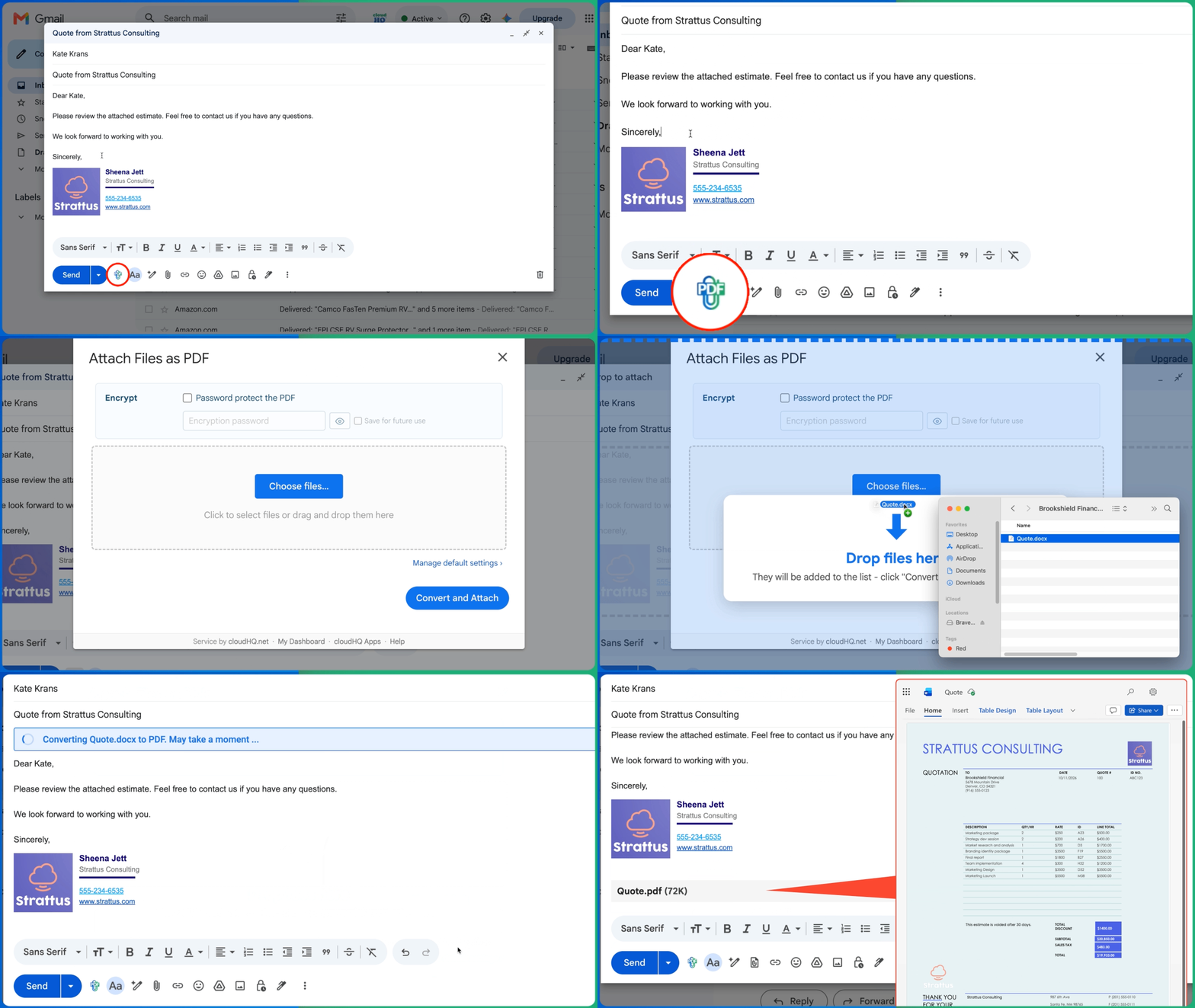
- Click Compose to start a new email. Click the Attach Files as PDF icon in the compose toolbar.
- Click Choose files… and select files from your computer. You can also drag files into the dialog. You can add up to 5 files, and each file can be up to 15 MB.
- Review the file list. You can remove a file before conversion. For supported file types such as text, HTML, and images, choose the paper format and orientation for each file. Word, Excel, PowerPoint, OpenOffice, and PDF files use their own page size and layout.
- Optional: select Password protect the PDF and enter a password. Select Save for future use if you want this password to be filled in next time. Saving the password does not turn on encryption automatically.
- Click Convert and Attach. Keep the Gmail draft open while cloudHQ uploads and converts the files.
- When the conversion is finished, the PDF files appear as regular attachments in your Gmail draft. Review the attachments, finish your message, and click Send when you are ready.
Additional Resources and Next Steps
- Frequently Asked Questions. Open the Attach Files as PDF FAQ and support page. The Attach Files as PDF website also includes answers to common questions.
- Paper size. The extension chooses a starting paper size based on your locale. This is usually Letter in the United States and Canada and A4 in many other locations. For supported file types, you can change the paper size and orientation for each file in the Gmail dialog. Paper size is not saved on the settings page. Word, Excel, PowerPoint, and OpenOffice files keep the page size and print layout stored in the document.
- Default encryption password. Open the Attach Files as PDF settings page to save or remove a default encryption password. A saved password is filled in for you, but password protection still starts unchecked. You decide whether to protect each batch.
- Video. Watch How Attach Files as PDF works for a video overview.
- Product website. For more help and product information, visit Attach Files as PDF by cloudHQ.
- Dashboard. Open the Attach Files as PDF dashboard to open Gmail, manage settings, and view your conversion totals.