To install the extension, choose your browser from the links below:
Bulk Email Reply dashboard is here.
Table of Contents
- Introduction
- Use Cases
- Install and Usage
- Using merge tags
- Example AI responses and prompts
- Additional Resources (FAQ, best practices, AI prompts, etc.)
Introduction
Bulk Email Reply by cloudHQ is a browser extension (for Gmail) that lets you select multiple emails and reply to all of them at once with a single click. It supports built-in AI-powered reply generation, letting you auto-draft personalized responses that you can send immediately or save as drafts for review. It also integrates with cloudHQ Email Templates and supports merge tags (e.g. *|NAME|*, *|COMPANY|*) so you can send templated yet personalized replies.
This browser extension works directly inside Gmail — no extra software needed — making it ideal for handling customer support, sales outreach, or bulk-replying to repetitive inquiries.
And as a pro: it drastically reduces time spent replying to similar emails, improves consistency and professionalism via templates, and helps maintain organization (e.g., via draft reviews, auto followup integration, or integration with Auto BCC workflows).
Use Cases
Here are some real-world use cases for Bulk Email Reply to help you use this app better:
- Customer Support: Answering Repetitive Questions
A customer support manager can select dozens of emails asking similar questions (like shipping delays or refund policies) and use Bulk Email Reply to send one clear, consistent reply to all of them at once. With a saved support template and merge tags for names, every customer still gets a personalized response in just a few clicks.
- Sales Follow-Ups After Webinars or Events
A sales rep can bulk-reply to everyone who emailed after a webinar requesting the slides, pricing, or a demo. Using Bulk Email Reply, they can quickly send a tailored follow-up that includes links, next steps, and a call-to-action, while merge tags ensure each prospect is addressed by name to keep the message warm and personal.
-
HR & Recruiting: Responding to Job Applicants
An HR recruiter can select a group of candidates in Gmail—such as everyone who didn’t progress to the next stage—and send a professional, polite rejection or update in one bulk reply. Bulk Email Reply lets them reuse a consistent template while still customizing details, saving hours of manual writing and reducing the risk of missed or forgotten responses.
Install and Usage
- Install the browser extension Bulk Email Reply by cloudHQ:
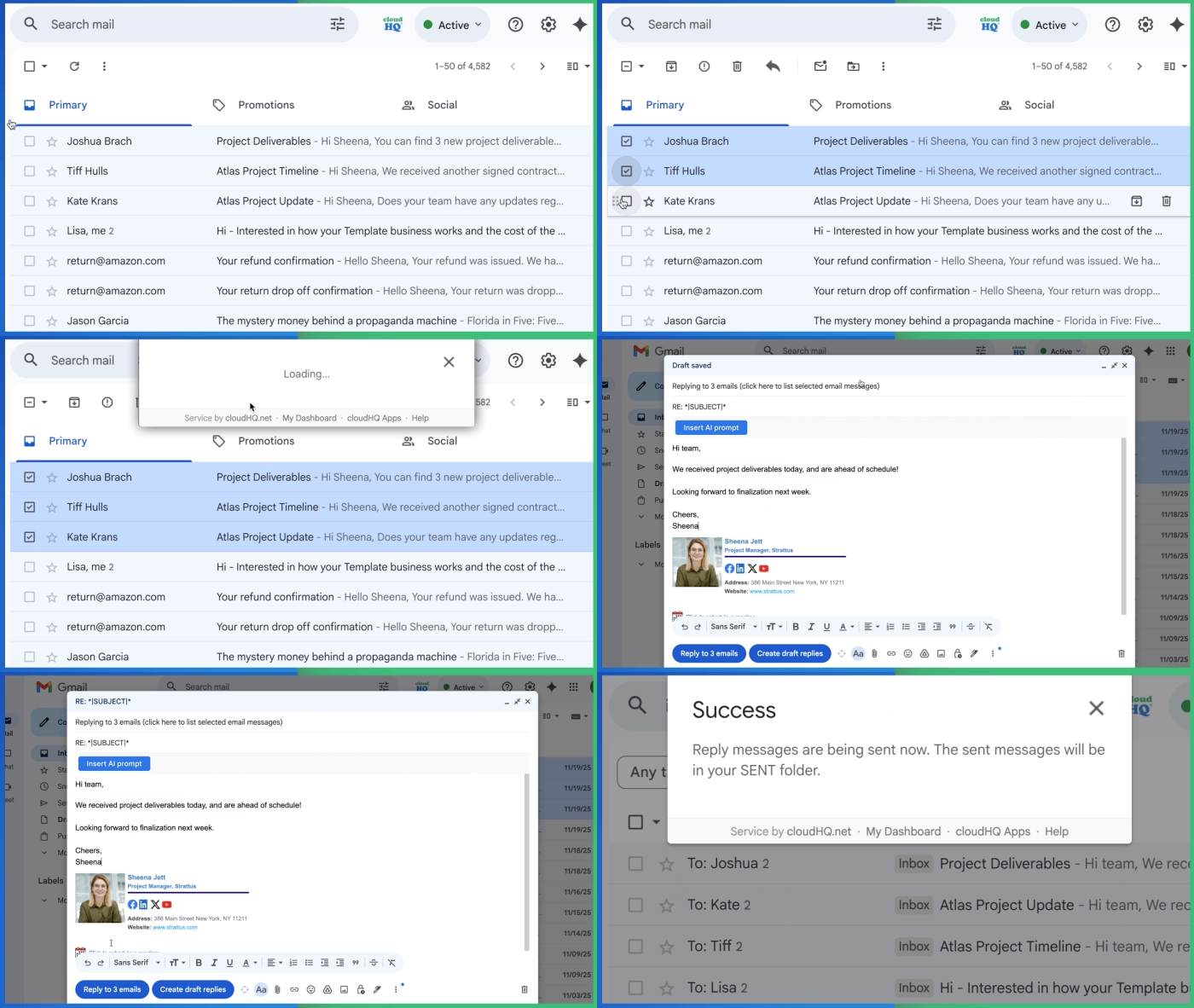
- Once installed and your account is created, you can try to reply to multiple email:
- Go to your inbox and select multiple emails and click on the Bulk Email Reply icon in the bar:
- Enter your reply. You can insert AI prompt by clicking on the Insert AI prompt.
- Go to your inbox and select multiple emails and click on the Bulk Email Reply icon in the bar:
Using merge tags
When you write a reply, you can use merge tags. We read merge tags from your Google Contacts. If the person you are replying to is not in your Google Contacts, we cannot replace the merge tag.
So you can write an email like this:
Hi *|FIRST_NAME|there|*,

More information about our product is here: https://www.cloudhq.net/

Best regards,
*|MY_NAME|*
In the example above, if the recipient (the person you are replying to) is in your Google Contacts and has a first name, we replace the merge tag with their first name. If the recipient is not in your Google Contacts, our system uses there instead, so the line will say Hi there,.
More details on how to use merge tags are explained here: Email campaigns support for mail merge and merge tags.
Example AI responses and prompts
One of the most powerful features of our system is using AI prompts to generate the entire email or just portion of email. That is espectially useful when you want that each answer is tailoer to the actual email you have receive. So you can have a prompt like this:
Answer the email. The answer should start with nice welcome and thanks. Be polite and very nice.
Follow these rules:

* If it is about product info, answer with that information
* If it is about pricing, share the pricing page and offer help choosing a plan
* If it is a support request, offer help and ask for details
* it the email is not question about product, about pricing or not a support request, then politely ask for more information.
* Keep the message friendly and clear
* Use simple English
Our AI prompt system is powerful. Check these key features:
- Our AI system can easily import information (prompts, data) from any website. To learn more, see the support note: Importing prompts and data from Google Docs or other cloud storage to power bulk email replies
- Our AI system also supports multi-step AI pipelines (also called the Multi-Step Prompting Pattern). A Multi-Step Prompting Pattern means guiding an AI through a task in clear, ordered steps, where each step has its own reasoning and output. At the end of each step, the AI also generates a “next prompt” that becomes the input for the following step, creating a structured, chain-like workflow. More information on how to use multi-step AI pipelines with Bulk Email Reply can be found in the support note How to use multi-step AI pipelines with Bulk Email Reply.
- For list of example AI prompts see support note: Example AI Prompts for Bulk Email Replies
Additional Resources (FAQ, best practices, AI prompts, etc.)
For more help and advanced options, see:
- FAQ: Bulk Email Reply
- AI prompts you can use: Example Prompts for Bulk Email Replies
- How to import prompts and data from external sites: Import from Google Docs or other cloud storage