To add the Download Files as PDF Chrome extension, use the link below:
You can also use Download as PDF by cloudHQ directly from our website here: Download as PDF Dashboard.
- Introduction
- Video Instructions
- Install Chrome Extension
- Using the Extension: Download Files as PDFs
- Next Steps
- Frequently Asked Questions
Introduction
Download Files as PDF by cloudHQ lets you instantly convert and download any file as a high-quality PDF, no matter the format. Whether you need to download files to PDF for sharing, archiving, or printing, this Chrome extension makes it effortless. Select a single file or an entire folder from your Google Drive™, or upload files directly, and the conversion happens automatically. Documents, spreadsheets, presentations, and images are all transformed into professional PDFs in seconds. Once ready, your PDFs are easy to save, share, or print.
Key Features:
- One-Click Download as PDF: One click is all it takes. Select your files in Google Drive and instantly download them as PDFs.
- Support for All File Types: Convert files to PDF from any format, including Google Docs, Sheets, Slides, images, txt files, MS Office files, EML files, and more.
- Automatic Storage: Every file you download to PDF is instantly stored in your Google Drive™ and/or downloaded straight to your computer.
- Batch Processing: Convert and download a large number of files to PDF in parallel, or convert all files in an entire folder at once.
- No Complex Software Required: Everything runs in your browser. No desktop software to install or configure.
- Two Ways to Convert Files to PDF: Right-click files in Google Drive to download them as PDF, or click the extension icon in your Chrome toolbar to upload files directly for conversion.
Video Instructions
Use Cases
- Legal & Business: Quickly turn contracts, proposals, or case documents in Google Drive into secure, read-only PDFs to share with clients.
- Education: Teachers can convert study guides or lecture notes to PDF so students receive the same, uneditable copy on any device.
- Creative & Design: Designers can export Google Slides or Drawings as PDFs for client review without risk of accidental edits.
- Personal Record-Keeping: Download resumes, receipts, or other documents from Google Drive to PDF for easy storage or printing.
Install Chrome Extension
To download files as PDF using this extension, you first need to install it in Chrome. Here’s how:
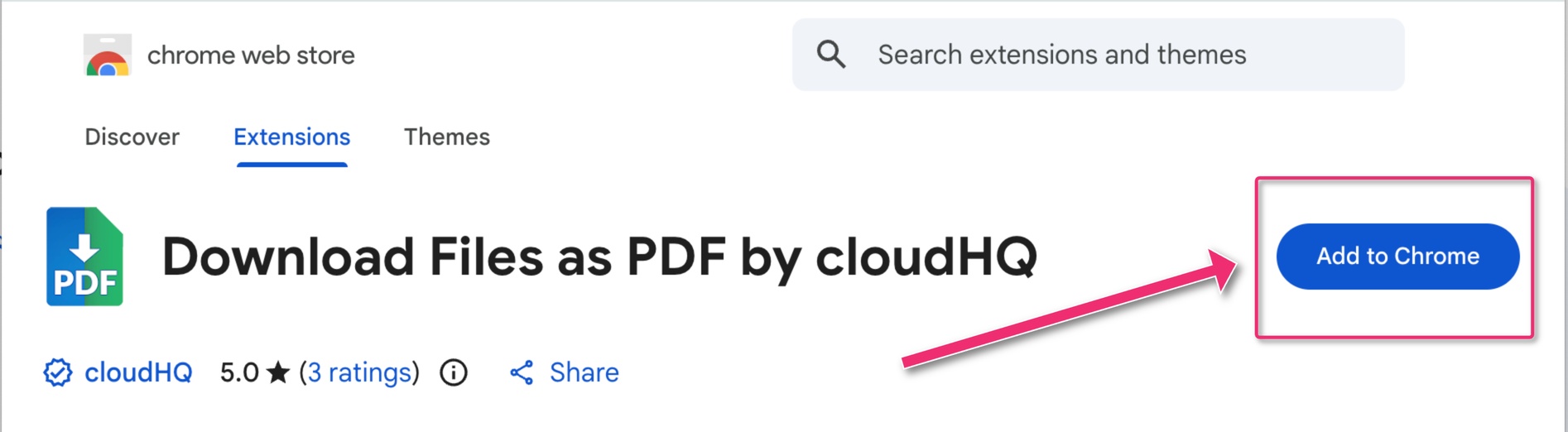
- Go to the Chrome Web Store page: Download Files as PDF by cloudHQ
- Click the Add to Chrome button:
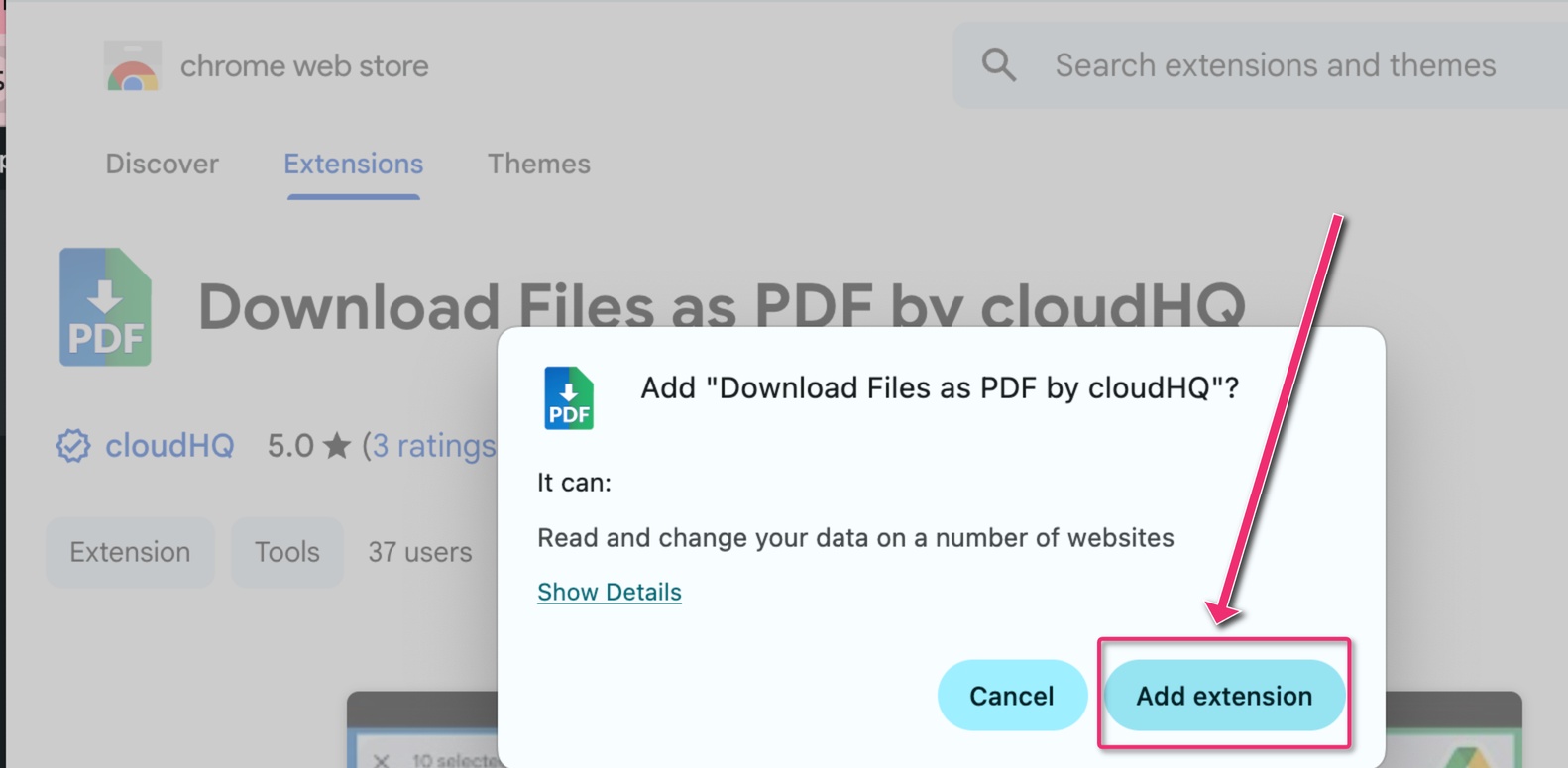
- A confirmation dialog will appear. Click Add extension to confirm and allow the requested permissions:
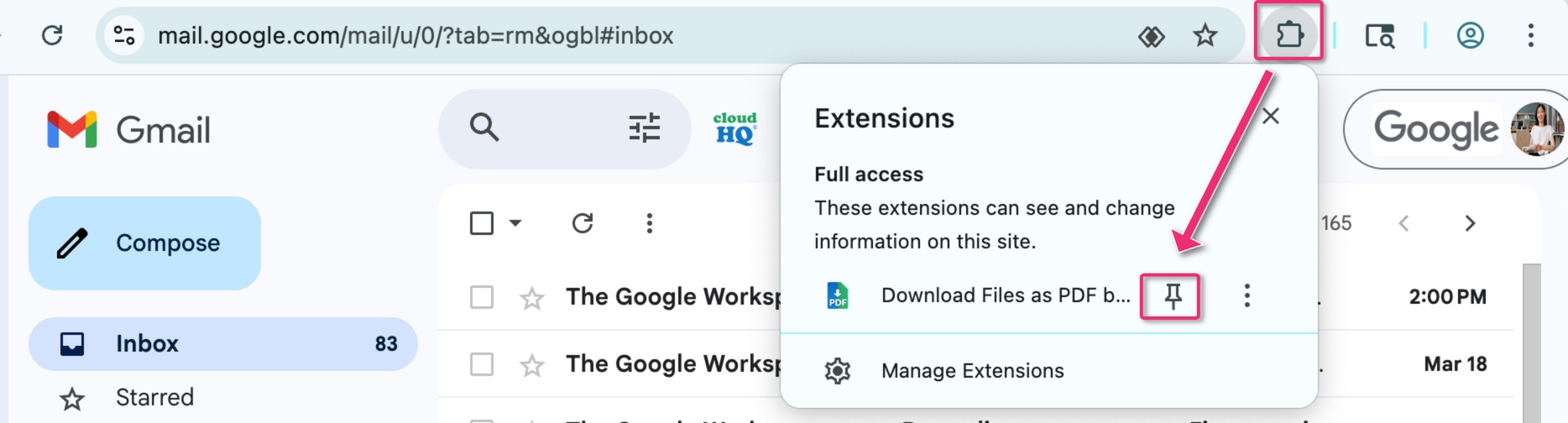
- Once installed, the Download Files as PDF icon will appear in your Chrome toolbar.

If you don’t see it in your Chrome toolbar, simply click the puzzle piece icon (Extensions) in the top-right corner of Chrome and pin the extension to your toolbar:
Using the Extension: Download Files as PDFs
There are two ways to convert and download files to PDF using this extension.
Option 1: Download Files as PDF Directly from Google Drive
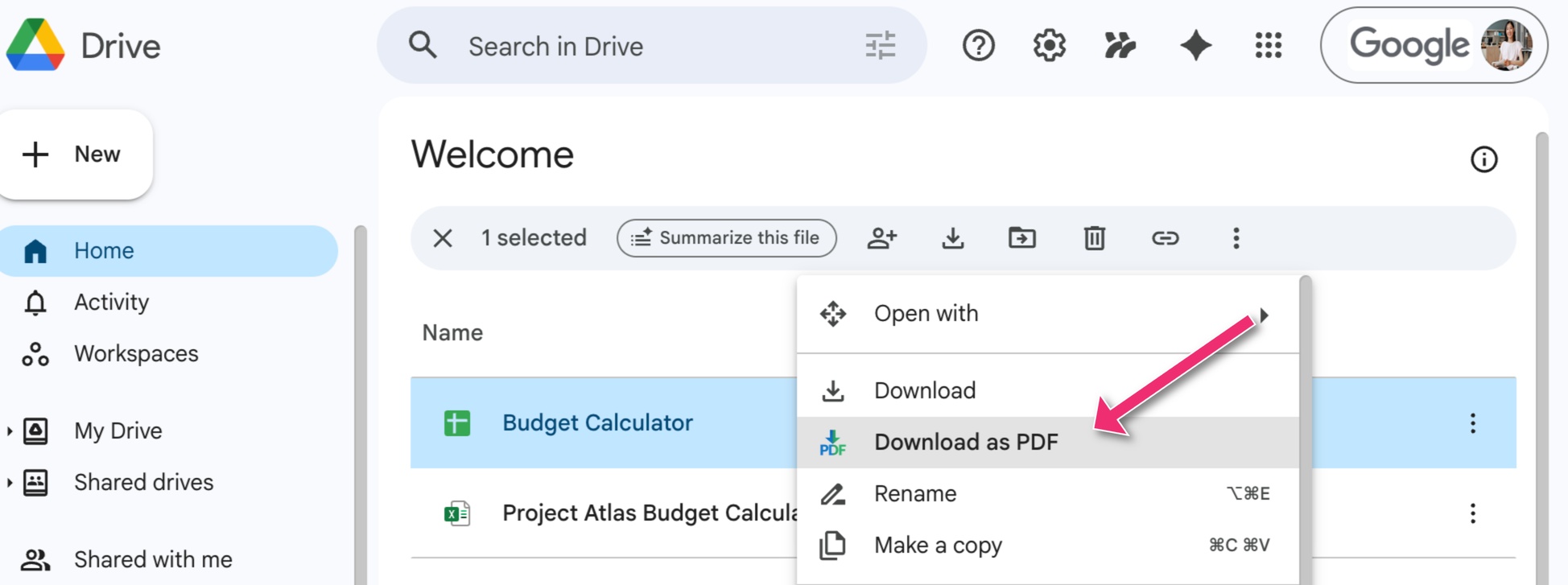
- Go to drive.google.com and select the file or folder you want to convert to PDF.
- Right-click the selected file(s) to open the dropdown menu, then select Download as PDF:
- Your file(s) will be converted to PDF.
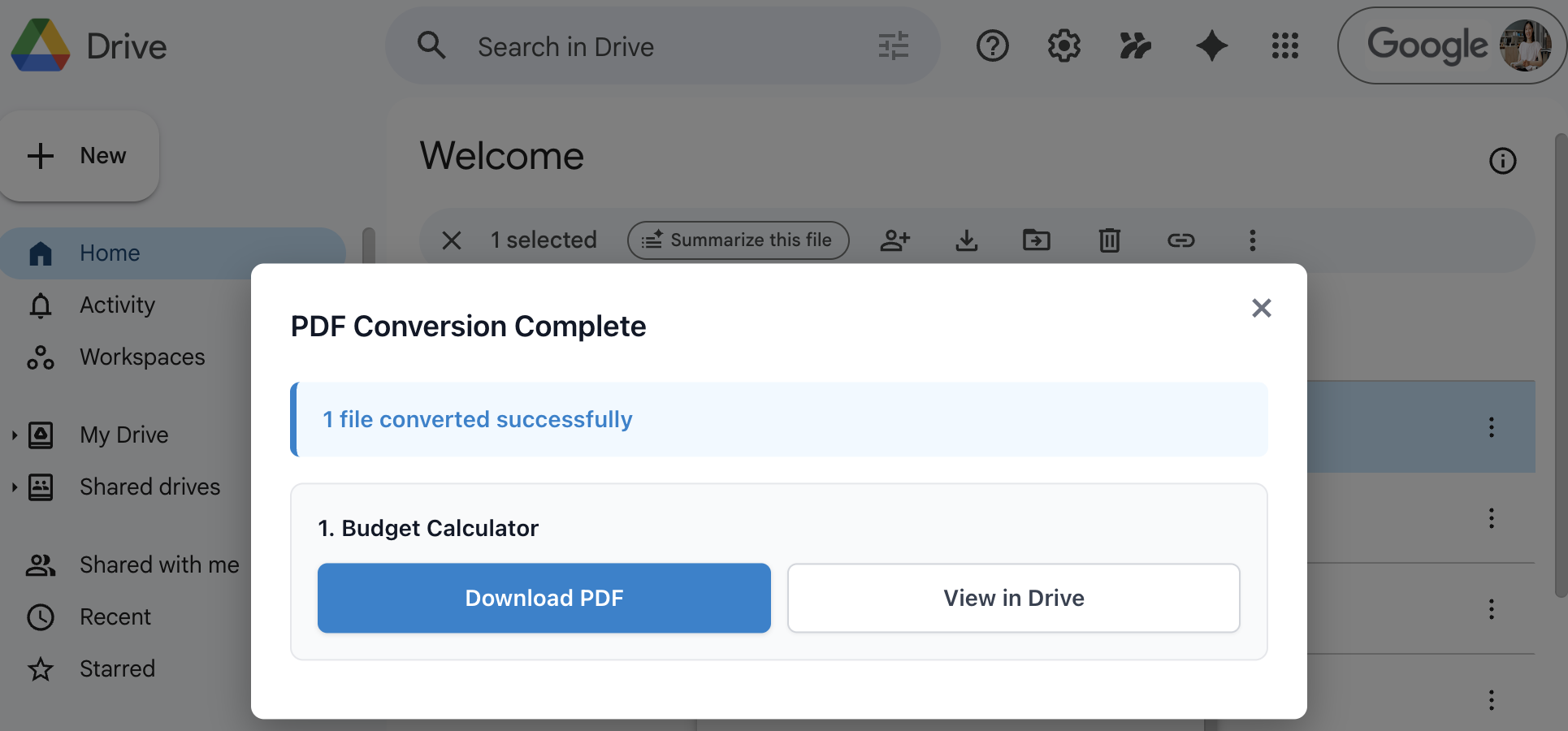
- When the process is finished, you can download the converted PDF files or view them in your Google Drive:
Option 2: Upload Files and Convert to PDF Using the Toolbar Icon
- Click the Download Files as PDF icon in the upper-right corner of your Chrome browser:

- Upload the files you want to convert to PDF by dragging and dropping, uploading them from your computer, or selecting them directly from Google Drive:
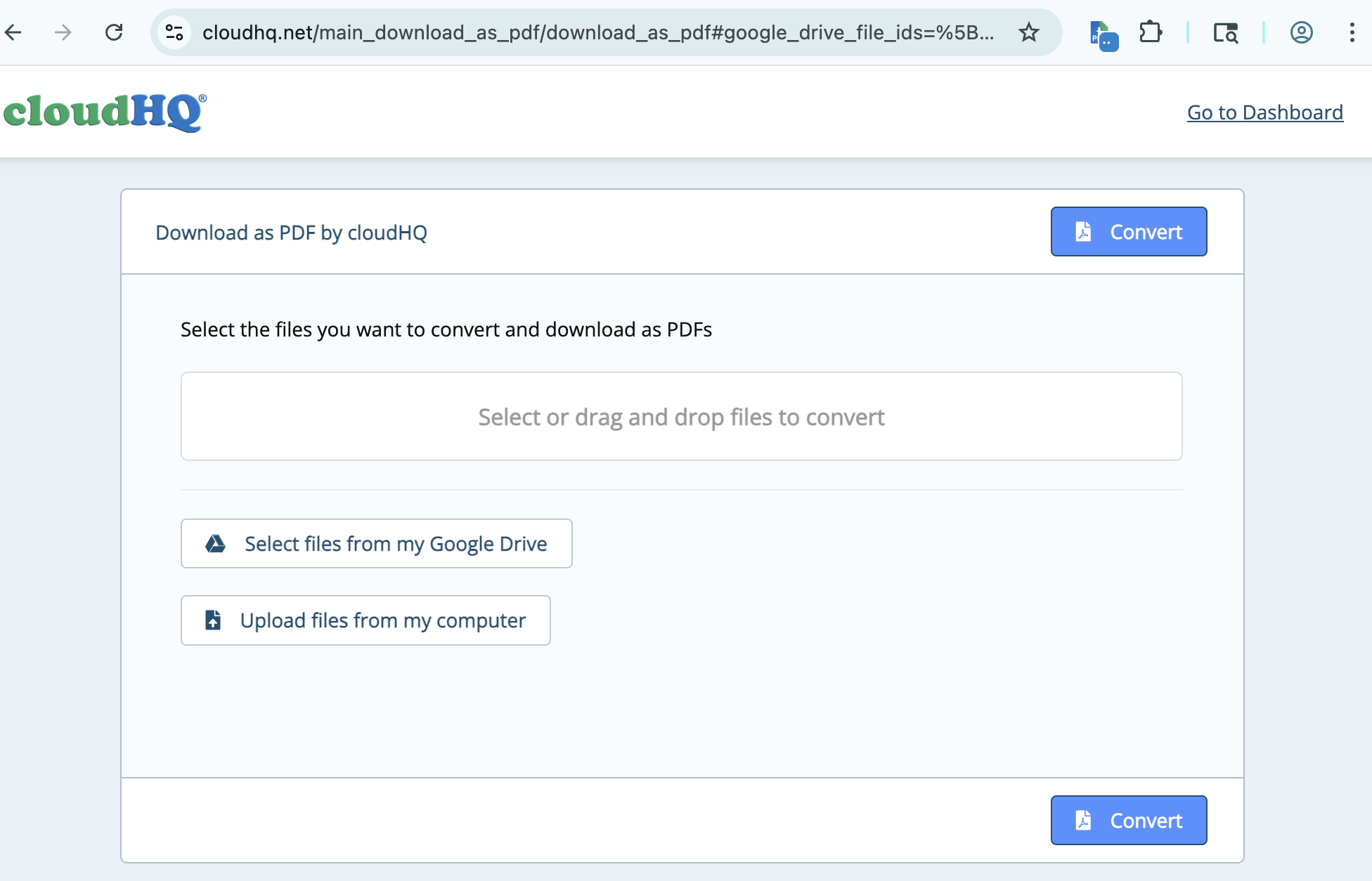
- Click Convert to start the files to PDF conversion:
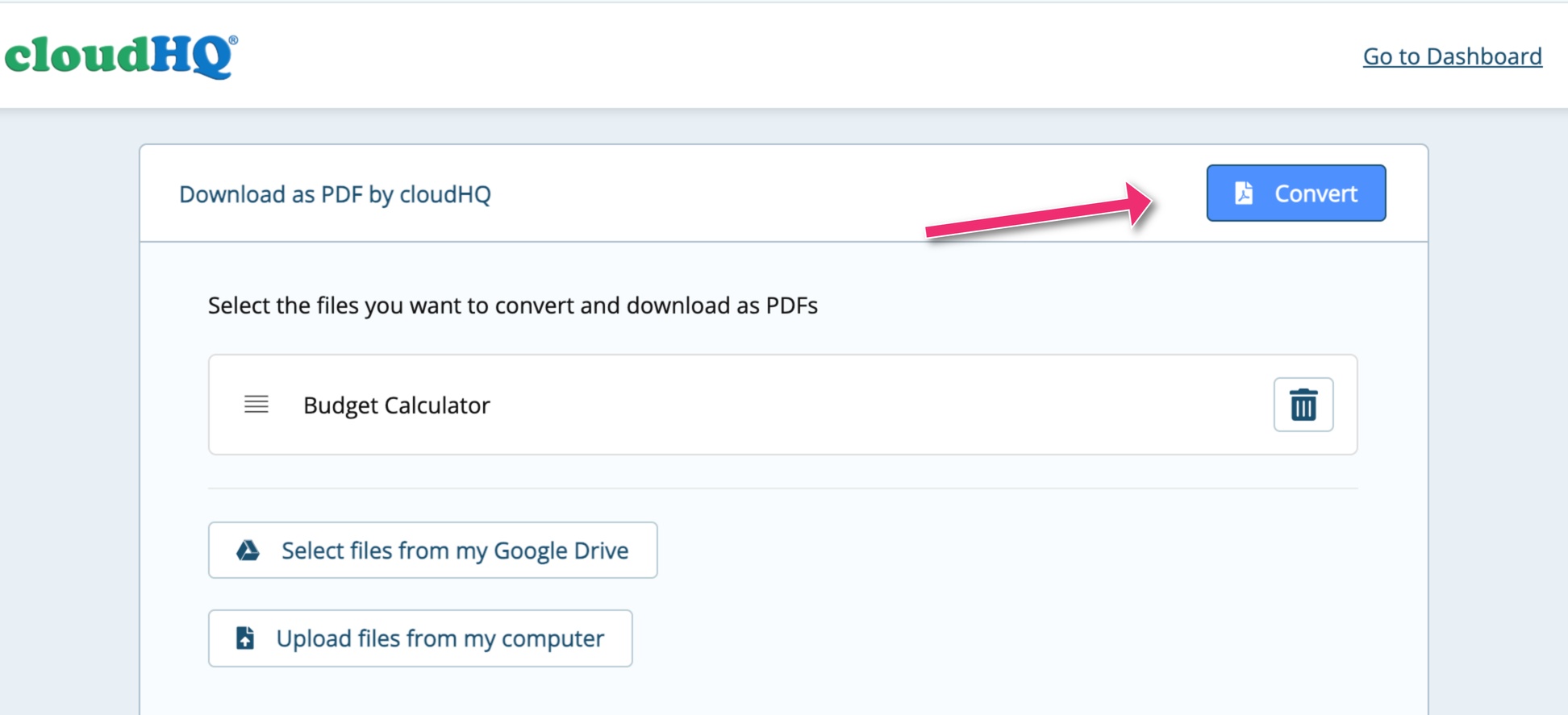
- cloudHQ will complete the conversion of your file(s):
- In moments, your file will be converted and automatically downloaded as PDF:
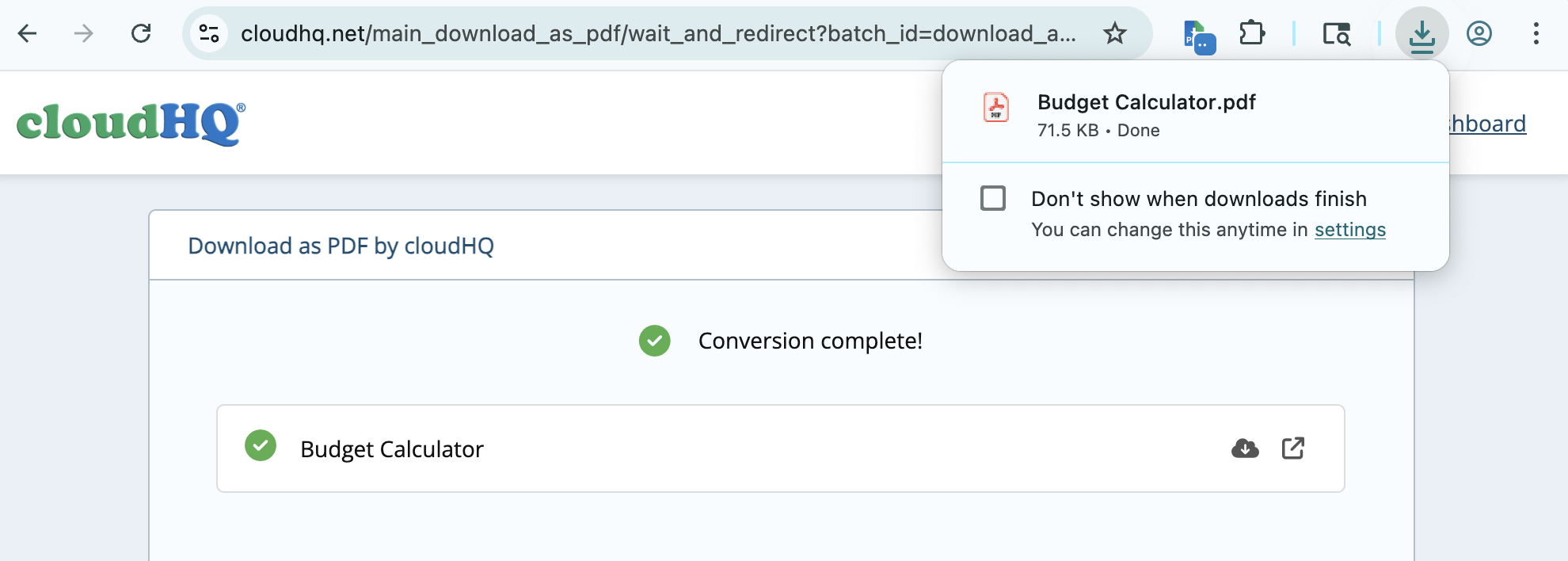
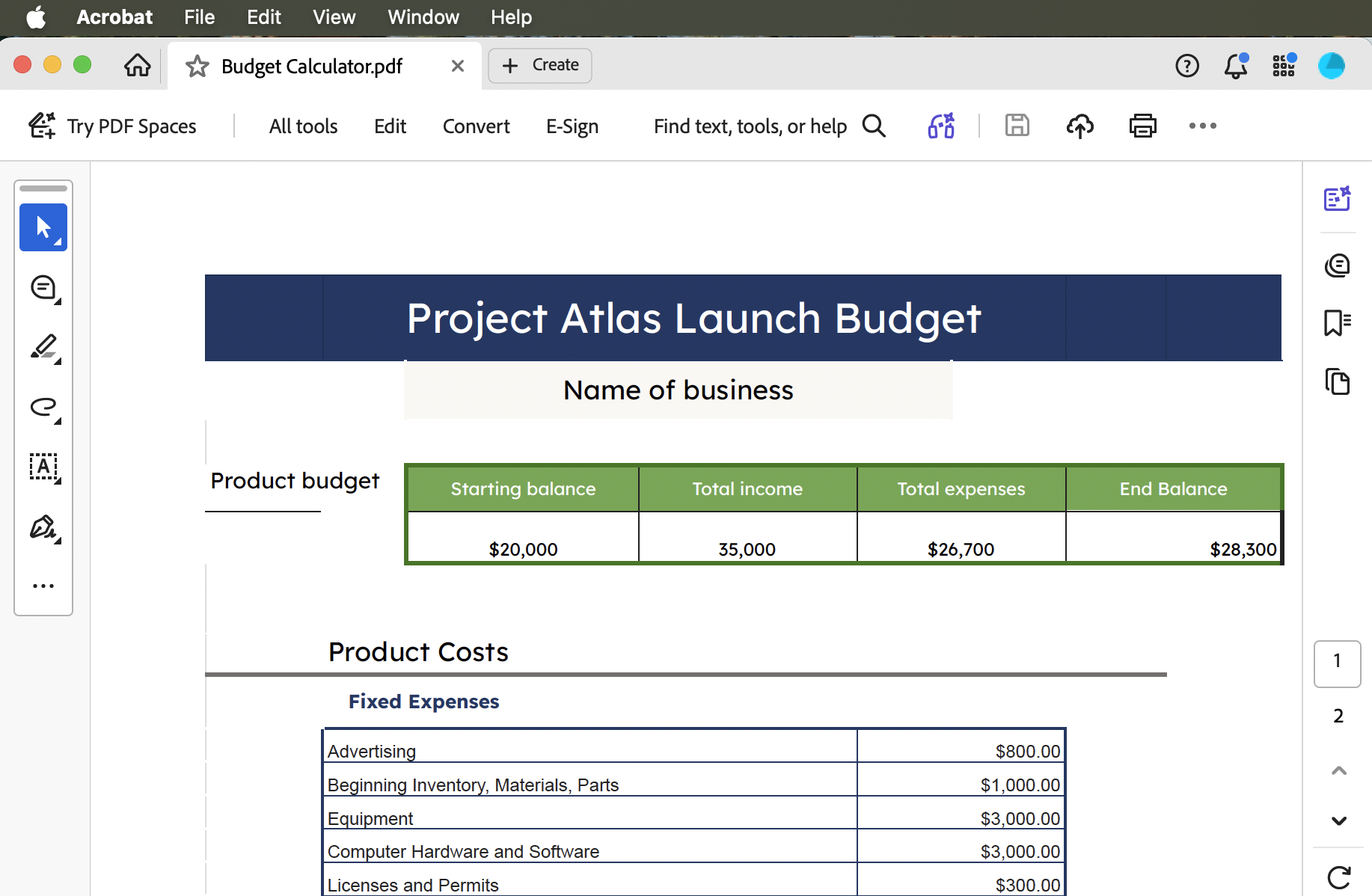
- Click on your downloaded file from your Downloads folder to open it as a PDF:
Next Steps
For more help and advanced options, see:
- Frequently Asked Questions: Download as PDF: FAQ (Frequently Asked Questions)
- How to use Download as PDF on mobile: How to use Download as PDF on mobile